- Zero-Code Efficient Printing: Multi-Dimensional Table-Based Label Automation Solution
- PrintSpirit Table Operation Tips (Part 1)
- PrintSpirit Table Operation Tips (Part 2): Report Printing
- Integrating LabVIEW with PrintSpirit for Barcode Printing | Technical Solution
- Barcode Label Printing Solution for Production Enterprises in Intranet Environment
- Embed "PrintSpirit" into Third-Party Websites for Quick Label Printing
- How to Quickly Implement Label Printing Functionality in Information Systems
- "Print Genie: JavaScript Scripts Help You Design Complex and Flexible Labels"
- "PrintSpirit" Print Service Fails to Start Automatically Solution
- Developing Label Printing Function for Information Systems at Minimal Cost with PrintSpirit Custom Edition
- Several Methods to Implement WEB Printing
- Introduction to Portable Mobile Printing Protocol CPCL
- In-depth Understanding of Zebra Printers and ZPL Language: A Beginner's Guide
PrintSpirit Table Usage Tips: Report Development
In the previous article PrintSpirit Table Operation Tips (Part 1), we introduced common techniques for table operations in PrintSpirit. With its low learning curve and similar operation logic to Word/WPS, PrintSpirit allows users to quickly master table creation without additional training.
This article will further explore PrintSpirit's advanced table features as a high-level report development tool, capable of replacing traditional report printing controls. It enables rapid development of various reports (orders, delivery notes, etc.), significantly improving efficiency when building enterprise systems like ERP, WMS, and MES. The developed reports support multiple APIs for web printing and traditional C# industrial software development.
Core Requirements of Report Development?
Let's examine examples (all printed using PrintSpirit):
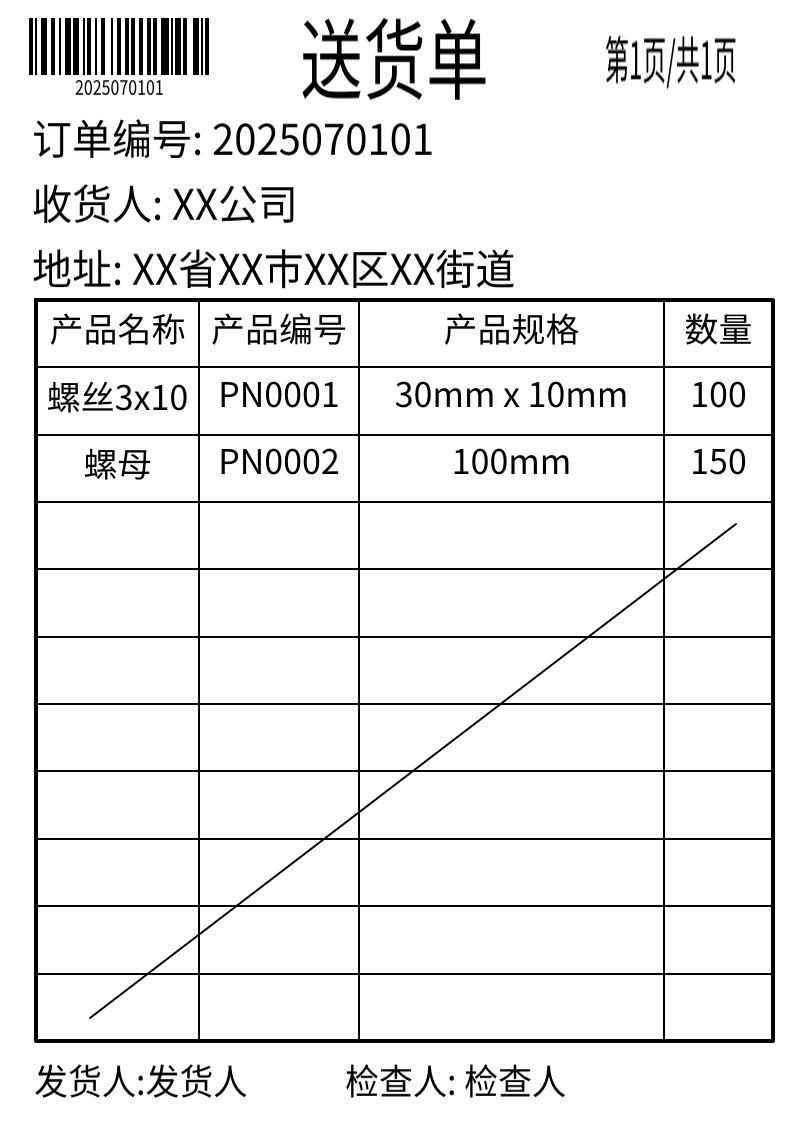
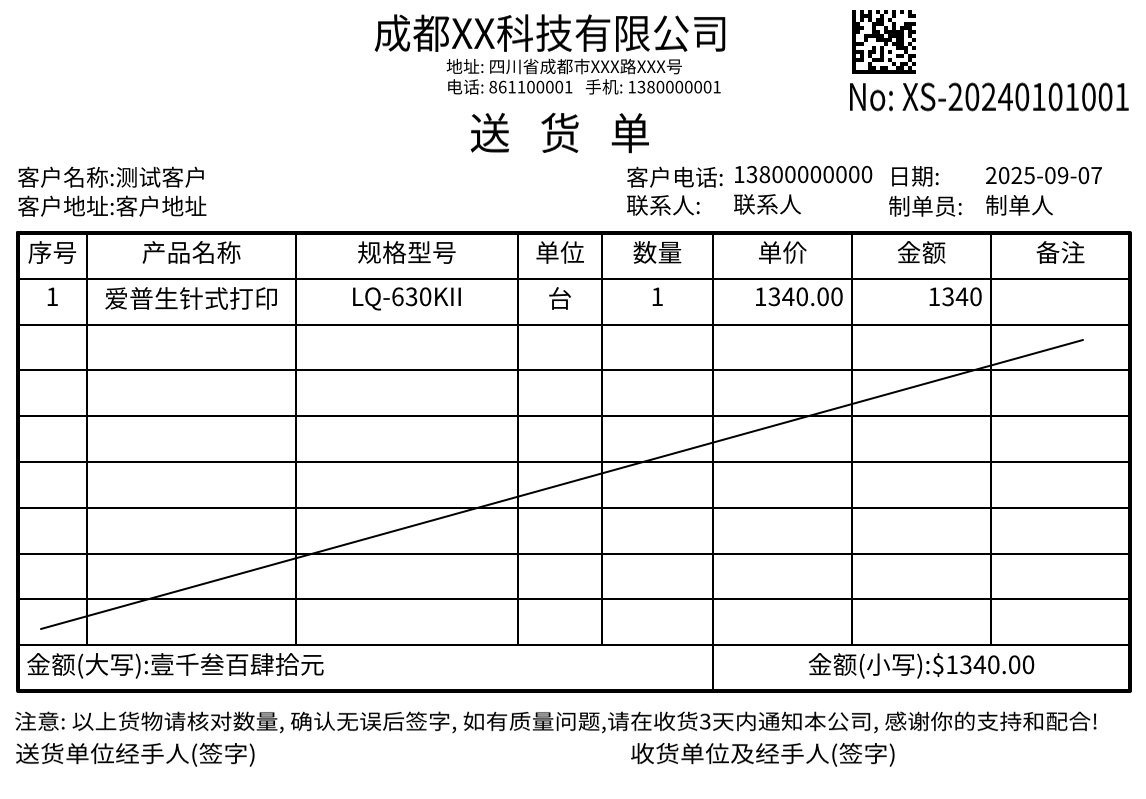
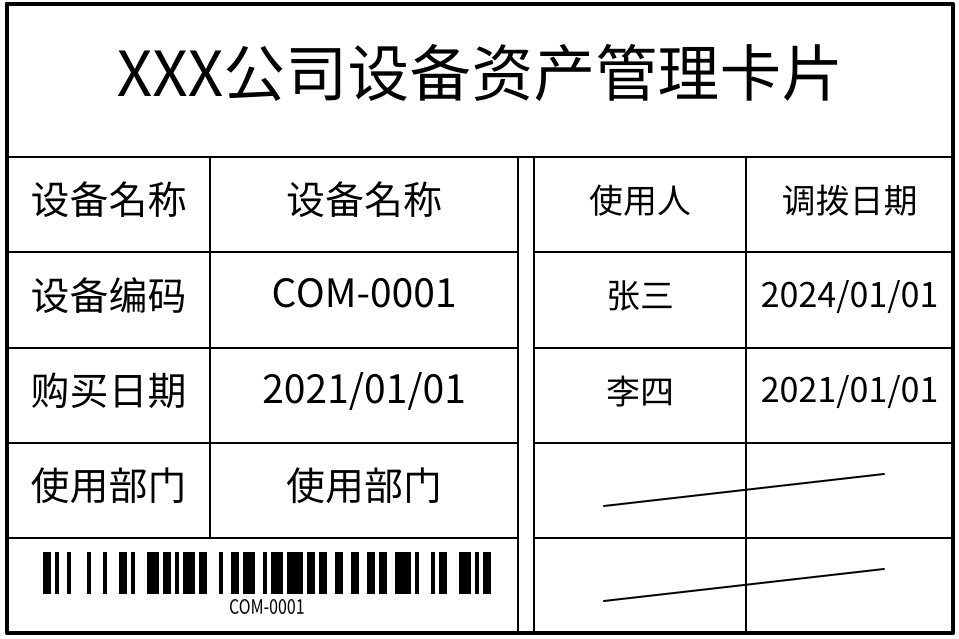
The first two examples are factory delivery notes, while the third shows equipment management asset cards. Structurally, they share:
- Public attribute printing: Order numbers, consignees, addresses, equipment IDs, etc.
- Detail areas: Dedicated sections for dynamic content:
- Material lists in delivery notes
- Equipment transfer records in asset cards
Details vary per report and may require:
- Blank line markers for incomplete pages
- Multi-page handling with page numbers (Page X/Total X)
PrintSpirit innovatively addresses these core requirements through intuitive UI and API designs.
Report Design Operations
Step 1: Create Base Table
Refer to PrintSpirit Table Operation Tips (Part 1) to design tables. Use variables for dynamic content (order numbers, consignees, etc.) which auto-replace during batch/API printing.
Pre-designed templates:
Delivery Note 1
Delivery Note 2
Asset Card
Step 2: Configure Detail Areas & Parameters
Core report feature with simple setup:
- Select detail area using SHIFT + mouse selection
- Right-click → Set Table Data Block or use top toolbar:
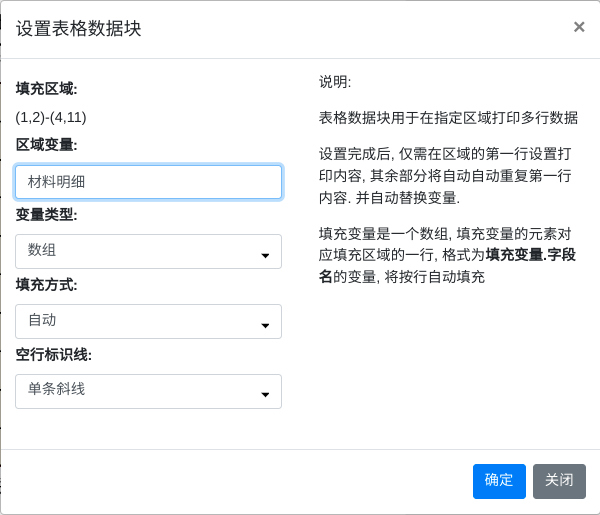
Configure:
- Data Block Area (read-only from selection)
- Data Variable: Key field for API/input data transmission
- Variable Type:
- Array format (default):
[["Screw 3x10","PN0001","30mm x 10mm","100"],...] - Key-Value format:
[{"name":"Screw 3x10","no":"PN0001",...},...](complex scenarios)
- Array format (default):
- Data Mapping:
- Auto-fill (sequential array mapping)
- Manual mode: Reference fields using
variableName.fieldNamein cells
- Blank Row Marker: Add diagonal lines to indicate empty rows
Note: Multiple data blocks per table supported for complex reports.
Implementation Methods
Usage resembles standard label printing with added detail variables in API calls.
JS API example (delivery note):
 1const p=await SPIRIT.open(opt);
 2p.PrintLabel('8225e719-f7b1-4b47-bebe-50db34dbad14', {
 3    "订单编号":"2025070101",
 4    "收货人":"XX Company",
 5    "收货人地址":"XX Province, XX City",
 6    "材料明细":[
 7        ["Screw 3x10", "PN0001", "30mm x 10mm", "100"],
 8        ["Nut", "PN0002", "100mm", "150"]
 9    ]
10});
11p.close();
Summary
PrintSpirit's innovative design enables efficient report development through:
- Intuitive visual editor
- Simplified API integration
- Cloud printing compatibility
Some enterprises combine PrintSpirit with low-code platforms to build cost-effective management systems - a topic for future articles.
FAQ
How to add page numbers?
PrintSpirit automatically exposes Current Page and Total Pages variables. Add them in headers/footers like regular variables.
How to print barcodes/QR codes in details?
- Use Key-Value mode for data blocks
- Insert barcode in first detail row cell, set content to
variableName.fieldName - Bind barcode to cell for auto-replication